
A Fire TV Stick that keeps restarting is usually caused by an unstable power supply, outdated Fire OS software, overheating, insufficient storage, or a hardware fault. Fortunately, most restart loops can be fixed without replacing the device. Following the troubleshooting steps in the correct order helps identify the cause and restore normal performance.
This guide explains why a Fire TV Stick keeps restarting, how to identify the root cause, and which solutions are most effective. Additionally, you’ll learn when the problem indicates hardware failure and when replacing the streaming device is the better option.
Why Does a Fire TV Stick Keep Restarting?
A Fire TV Stick keeps restarting because the device loses stable power, encounters software errors, overheats, or detects problems during startup. Understanding the exact cause prevents unnecessary factory resets and helps you apply the correct fix first.
The most common causes of restart loops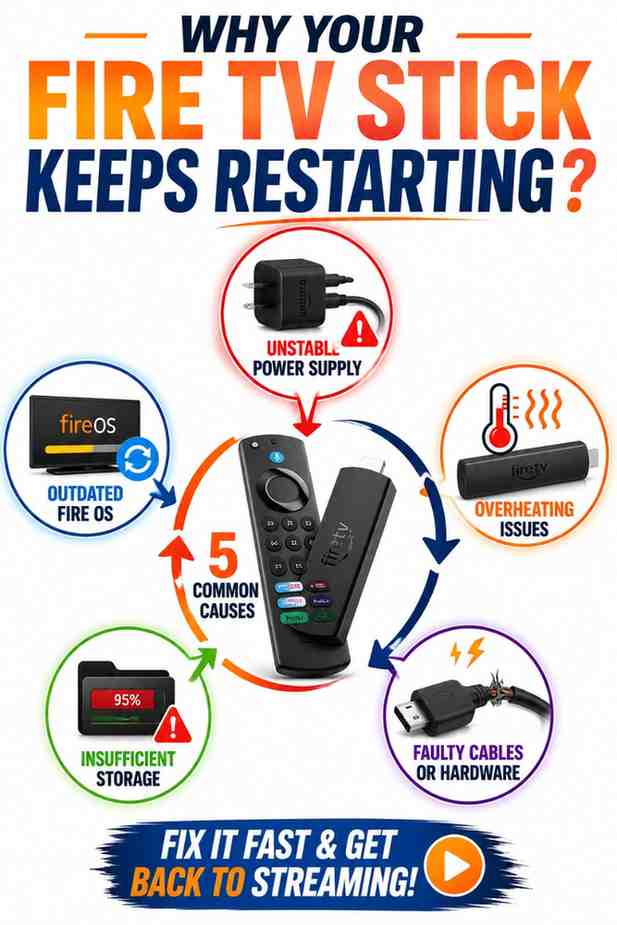
The most common reason a Fire TV Stick keeps restarting is insufficient power. Many users connect the Fire TV Stick directly to a television’s USB port, but some TV USB ports cannot deliver the consistent power the streaming device requires. As a result, the Fire TV Stick may reboot repeatedly instead of loading Fire OS.
Software issues also cause a Fire TV Stick restart loop. Interrupted Fire OS updates, corrupted system files, or incompatible applications can prevent the operating system from completing the startup process. Consequently, the Fire TV Stick may display the Amazon logo before restarting again.
Low available storage is another frequent cause. When the Fire TV Stick runs out of internal storage, Fire OS may struggle to launch apps or complete background processes. Removing unused applications and clearing cached data often improves system stability.
Overheating can also force a Fire TV Stick to restart automatically. A Fire TV Stick installed behind a tightly enclosed television or inside a cabinet may trap heat during extended streaming sessions. Allowing better airflow helps reduce thermal shutdowns.
Faulty accessories should not be overlooked. Damaged USB cables, worn power adapters, or unstable HDMI connections can interrupt power delivery and trigger repeated restarts. If the remote also becomes unresponsive after multiple reboot attempts, learning how to pair your Fire TV Stick remote can help restore normal operation after troubleshooting.
Bottom Line: A Fire TV Stick usually restarts because of power problems, software issues, overheating, low storage, or failing accessories. Identifying the actual cause saves time and avoids unnecessary repairs.
Software problems vs. hardware issues
Most Fire TV Stick restart problems are software-related rather than hardware failures. Fire OS bugs, incomplete updates, corrupted applications, and storage limitations typically cause restart loops that can be resolved without replacing the device.
Hardware issues become more likely when a Fire TV Stick continues restarting after completing every recommended troubleshooting step. A failing power management component, damaged internal memory, or defective motherboard can prevent the streaming device from operating normally.
Restart behavior provides useful clues. For example, a Fire TV Stick that restarts immediately after displaying the Amazon logo often indicates a software problem. Meanwhile, random restarts during movies or live streaming may point to overheating or unstable power delivery.
If the Fire TV Stick eventually displays no picture after repeated restart attempts, the issue may extend beyond reboot loops. In that situation, troubleshooting a Fire TV Stick black screen can help determine whether the display output has also been affected.
Bottom Line: Most Fire TV Stick restart loops originate from software or power issues, while persistent reboot problems after complete troubleshooting may indicate hardware failure.
How to identify the cause before troubleshooting
The fastest way to diagnose a Fire TV Stick that keeps restarting is to observe exactly when the restart occurs. The timing often reveals whether the problem involves power, software, overheating, or connected hardware.
If the Fire TV Stick restarts immediately after plugging it into power, begin by inspecting the power adapter and USB cable. However, if restarting only occurs while streaming Netflix, Prime Video, or YouTube, overheating or limited storage becomes more likely.
A Fire TV Stick that restarts only when downloading updates may indicate software corruption or network interruptions. If updates repeatedly fail because the streaming device cannot stay connected, resolving Fire TV Stick Wi-Fi connection issues should be part of the troubleshooting process before attempting another update.
Pay attention to recent changes. Installing several new applications, moving the Fire TV Stick to another television, replacing the power adapter, or using a third-party USB cable can introduce new restart problems. Reversing those changes often confirms the underlying cause.
Checking for additional symptoms also helps narrow the diagnosis. Remote connection failures, overheating, freezing, application crashes, and slow performance frequently appear before repeated restart loops develop.
Bottom Line: Identifying when a Fire TV Stick restarts provides valuable clues that make troubleshooting faster and more accurate. Starting with the most likely cause reduces unnecessary resets and improves the chances of a permanent fix.
10 Ways to Fix a Fire TV Stick That Keeps Restarting
A Fire TV Stick that keeps restarting can usually be repaired by working through the most common causes first. Start with the power supply, then check the software, storage, and temperature before considering a factory reset or hardware replacement.
Check the power adapter and USB cable
The first fix is to verify that the Fire TV Stick receives stable power. Amazon recommends using the original power adapter and USB cable because they are designed to provide the correct voltage and current. Powering the Fire TV Stick from a television’s USB port may not deliver enough power, especially during startup.
Inspect the USB cable for cuts, loose connectors, or bent plugs. Additionally, test another wall outlet if the current one appears unreliable. A damaged cable or unstable outlet can interrupt power and cause repeated reboot loops.
If the restart problem began after replacing the power adapter, reconnect the original Amazon adapter if available. Third-party chargers may work for charging phones but fail to provide consistent power for streaming devices.
Using quality accessories also improves long-term reliability. Choosing the right Fire TV Stick accessories can help prevent power and connection issues caused by low-quality cables or adapters.
Bottom Line: Stable power is the most common solution for a Fire TV Stick that keeps restarting. Always use the original wall adapter and a reliable USB cable before trying more advanced fixes.
Restart the Fire TV Stick correctly
A manual restart clears temporary software errors that may cause a Fire TV Stick to reboot repeatedly. Unlike an unexpected restart, a proper reboot allows Fire OS to close background processes safely.
If the Fire TV Stick remains responsive, open Settings > My Fire TV > Restart. Wait until the device restarts completely before testing it again. This method is safer than repeatedly disconnecting the power cable.
If the Fire TV Stick is frozen, unplug the power adapter from the wall outlet for about one minute before reconnecting it. Avoid unplugging the HDMI connector while the device is still powered.
After restarting, verify that the remote reconnects normally. If the remote fails to respond after rebooting, follow the guide to pair your Fire TV Stick remote before continuing with additional troubleshooting.
Bottom Line: A proper restart can resolve temporary Fire OS glitches without deleting your apps or settings.
Update Fire OS and installed apps
Keeping Fire OS updated fixes known software bugs that may trigger restart loops. Amazon regularly releases updates that improve system stability, security, and compatibility with streaming applications.
Open Settings > My Fire TV > About > Check for Updates. Install every available update, then restart the Fire TV Stick once the installation finishes.
Applications should also remain updated. Outdated streaming apps occasionally crash repeatedly and destabilize Fire OS. Updating installed apps reduces compatibility problems after major Fire OS releases.
If updates cannot be downloaded because the streaming device disconnects from the internet, troubleshoot Fire TV Stick Wi-Fi connection issues before attempting another update.
Bottom Line: Updating Fire OS and installed apps removes software bugs that commonly cause a Fire TV Stick to restart unexpectedly.
Free up storage, remove problematic apps, check for overheating, and factory reset if needed
Limited internal storage can slow a Fire TV Stick and contribute to repeated restarts. Delete unused applications, clear application cache, and remove downloaded files that are no longer needed. Maintaining several gigabytes of free storage helps Fire OS operate more efficiently.
Problematic apps can also trigger restart loops. Sideloaded applications, unsupported launchers, and poorly optimized streaming apps sometimes conflict with Fire OS. If the restart issue appeared after installing a specific app, uninstall it and monitor whether stability improves.
Overheating is another common cause of random restarts. Ensure the Fire TV Stick has adequate airflow and is not pressed tightly behind the television or inside a closed cabinet. If necessary, use the included HDMI extender to create additional space for ventilation.
If none of the previous fixes work, perform a factory reset. Open Settings > My Fire TV > Reset to Factory Defaults. A factory reset removes installed apps, personal settings, and downloaded data, returning the Fire TV Stick to its original configuration. After setup, reinstall only essential apps before testing performance again.
If the remote stops responding after the reset process, you may also need a replacement remote if pairing no longer resolves the issue.
Bottom Line: Clearing storage, removing unstable apps, preventing overheating, and performing a factory reset resolve most remaining software-related restart problems.
Alternative Solutions If Restarting Continues
If a Fire TV Stick keeps restarting after completing every standard fix, the problem may involve external hardware or an internal component failure. The following solutions help confirm whether the streaming device can still be repaired.
Try another HDMI port or TV
Connecting the Fire TV Stick to another HDMI port eliminates the possibility of a faulty connection. If available, test the streaming device on another television to determine whether the problem follows the Fire TV Stick or remains with the original TV.
If moving the Fire TV Stick produces a black display instead of the home screen, troubleshoot the Fire TV Stick black screen before assuming the streaming device has failed completely.
Test with a different power adapter
A defective power adapter may deliver enough electricity to start the Fire TV Stick but fail under heavier workloads. Testing another genuine Amazon-compatible adapter helps confirm whether the original adapter is responsible for the restart loop.
Avoid low-quality chargers with unknown power ratings. Consistent voltage is essential for stable Fire TV Stick performance.
Contact Amazon Support
If every troubleshooting step fails, contact Amazon Support for additional diagnostics. Support representatives can verify warranty status, recommend advanced recovery procedures, and determine whether the Fire TV Stick qualifies for repair or replacement.
Replace the Fire TV Stick if hardware has failed
Replacement becomes the best option when the Fire TV Stick continues restarting after power, software, storage, and factory reset solutions have all failed. Persistent reboot loops often indicate failing internal hardware that cannot be repaired at home.
If you decide to upgrade, compare the best Fire TV Stick models to choose one that matches your streaming needs. Users considering higher performance should also compare Fire TV Stick 4K Max and Fire TV Stick 4K, while those looking for an affordable option may benefit from comparing Fire TV Stick HD and Fire TV Stick 4K.
Bottom Line: When every troubleshooting method fails, testing external hardware and considering a replacement Fire TV Stick is the most practical long-term solution.
How to Prevent Your Fire TV Stick from Restarting Again
Preventing a Fire TV Stick from restarting is easier than fixing a persistent reboot loop. Regular maintenance, proper power delivery, and keeping Fire OS updated significantly reduce the chances of unexpected restarts.
Always use the original power adapter
The best way to prevent a Fire TV Stick from restarting is to use the original Amazon power adapter and USB cable. These accessories provide the stable power output that Fire OS expects during startup, software updates, and high-resolution streaming.
Avoid powering the Fire TV Stick from a television’s USB port unless Amazon specifically recommends it for your model. Although the device may turn on, some television USB ports cannot consistently deliver enough power during demanding tasks.
Keep Fire OS updated
Fire OS updates improve stability, fix known bugs, and enhance compatibility with streaming apps. Checking for updates every few weeks helps the Fire TV Stick receive important performance and security improvements.
Likewise, update installed apps regularly. Older versions of streaming apps may conflict with newer Fire OS releases, increasing the likelihood of crashes or unexpected restarts.
Maintain enough free storage
Keeping free storage available allows the Fire TV Stick to install updates, store temporary files, and run applications more efficiently. Delete unused apps, clear application caches, and remove downloaded content you no longer need.
Review installed applications every few months. Removing apps you rarely use helps maintain smoother performance and reduces unnecessary background activity.
Prevent overheating
Proper ventilation helps the Fire TV Stick maintain a safe operating temperature. Leave enough space around the streaming device, avoid placing it inside enclosed cabinets, and use the included HDMI extender if the area behind the television becomes too warm.
Long streaming sessions are generally safe, but allowing airflow around the Fire TV Stick helps prevent heat buildup that can trigger automatic restarts.
Bottom Line: Using the correct power adapter, installing Fire OS updates, maintaining free storage, and preventing overheating are the most effective ways to keep a Fire TV Stick running reliably.
When Should You Replace Your Fire TV Stick?
A Fire TV Stick should only be replaced after every recommended troubleshooting step has failed. Most restart problems are caused by software or power issues, but persistent reboot loops can eventually indicate hardware failure.
Signs the hardware is failing
A Fire TV Stick may have failing hardware if it continues restarting after a factory reset, multiple power adapters, different HDMI ports, and another television have all been tested. Frequent freezing, failure to complete startup, or repeated crashes immediately after the Amazon logo are additional warning signs.
Hardware failure is also more likely if the Fire TV Stick has experienced physical damage, liquid exposure, or years of heavy daily use. Internal components naturally wear over time, although many Fire TV Stick devices continue working reliably for several years.
When upgrading is the better option
Upgrading is often the better choice when repair attempts become time-consuming or the Fire TV Stick no longer meets your streaming needs. Newer models offer faster processors, improved Wi-Fi performance, and support for the latest audio and video technologies.
If you’re unsure which model to buy next, comparing available Fire TV Stick models helps you choose the right balance of performance and value for your home entertainment setup.
Bottom Line: Replace a Fire TV Stick only after confirming that software, power, and accessory issues are not responsible for the restart loop.
Frequently Asked Questions
Why does my Fire TV Stick keep rebooting?
A Fire TV Stick usually keeps rebooting because of unstable power, outdated Fire OS software, overheating, insufficient storage, or a failing hardware component. Start by checking the power adapter and USB cable before moving on to software troubleshooting.
Can a bad power adapter cause restart loops?
Yes. A faulty or underpowered adapter can interrupt the electricity needed by the Fire TV Stick, causing repeated restarts. Using the original Amazon wall adapter is the most reliable way to eliminate power-related reboot problems.
Does overheating make a Fire TV Stick restart?
Yes. A Fire TV Stick may automatically restart if it becomes too hot during extended streaming sessions. Improving ventilation and avoiding enclosed spaces helps keep the device within a safe operating temperature.
Will a factory reset stop the restart loop?
Yes, a factory reset can stop a restart loop if corrupted software or incorrect settings are responsible. However, a factory reset deletes installed apps and personal settings, so it should be used only after simpler troubleshooting methods have failed.
Why does my Fire TV Stick restart while streaming?
A Fire TV Stick that restarts only during streaming often experiences overheating, insufficient power, or software instability. Checking airflow, updating Fire OS, and using the original power adapter usually resolve this issue.
How long should a Fire TV Stick last?
A Fire TV Stick typically lasts several years with normal use and proper care. Regular software updates, adequate ventilation, and stable power help extend the lifespan of the streaming device.
Conclusion
Bottom Line
A Fire TV Stick that keeps restarting is usually repairable without replacing the device. In most cases, stable power, updated Fire OS software, sufficient storage, and proper ventilation resolve the problem. Working through the fixes in order helps identify the root cause while avoiding unnecessary factory resets.
Which fix to try first
Start by using the original Amazon power adapter and USB cable, as power-related issues are the most common cause of restart loops. Next, restart the Fire TV Stick, install available Fire OS updates, free up storage, and check for overheating. If the device still keeps restarting after completing every step, the hardware may have reached the end of its service life, making replacement the most practical solution.