
Many macOS users feel like they’re only scratching the surface of what their Macs can do. From hidden shortcuts to productivity hacks, macOS is full of tricks that can save you time and make your workflow smoother. Whether you’re new to Mac or a seasoned user, learning these macOS tips and tricks can transform how you interact with your device. In this guide, we’ll cover essential shortcuts, hidden features, customization options, and performance optimizations that are often overlooked. By the end, you’ll know how to navigate your Mac like a pro and unlock productivity hacks you didn’t even know existed.
Many people struggle with repetitive tasks, slow workflows, or underutilized features in macOS. This article solves that problem by showing practical, step-by-step methods to enhance your Mac experience. You’ll learn shortcuts for everyday tasks, hidden settings that boost efficiency, and tricks that make your Mac feel faster and smarter. If you’ve ever wished your Mac could do more without extra apps, this guide delivers actionable solutions that anyone can implement.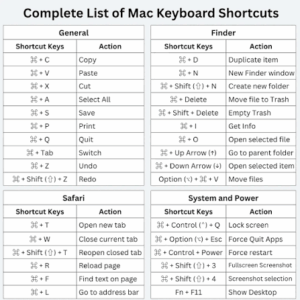
Essential macOS Shortcuts for Beginners
Keyboard and trackpad shortcuts are the backbone of efficient Mac usage. They save seconds that quickly add up to hours over time. By mastering a few essential shortcuts, you can navigate macOS without relying heavily on your mouse.
Keyboard Shortcuts
Macs come with a wide array of keyboard shortcuts designed to speed up everyday tasks. Here are some of the most useful ones:
- Command + C / Command + V: Copy and paste text or files instantly.
- Command + X: Cut items to move them quickly.
- Command + Z: Undo your last action in almost any app.
- Command + Shift + 4: Capture a portion of your screen and save it as a screenshot.
- Command + Tab: Switch between open apps without using the mouse.
Using these shortcuts consistently can reduce frustration and save time when working on multiple tasks. For instance, graphic designers often use Command + Shift + 4 to quickly capture assets for client presentations.
Trackpad Gestures
Trackpad gestures offer a smooth, intuitive way to interact with macOS. Many users overlook them, but they can dramatically enhance multitasking:
- Three-finger swipe up: Opens Mission Control, displaying all open windows.
- Pinch with thumb and three fingers: Shows Launchpad for quick app access.
- Swipe left/right with two fingers: Navigate between pages in Safari or Finder.
- Double-tap with two fingers: Right-click for context menus.
Mastering trackpad gestures allows you to work faster without memorizing dozens of shortcuts. Combining gestures with keyboard shortcuts can create a workflow that feels effortless.
Finder Shortcuts
Finder is macOS’s file management system, and knowing its shortcuts can save a lot of time:
- Command + N: Open a new Finder window.
- Command + Shift + N: Create a new folder instantly.
- Command + Delete: Move selected items to Trash.
- Command + Option + Space: Open a new Spotlight search window.
For example, students often use Command + Shift + N to quickly organize research files into folders while writing papers. These shortcuts reduce repetitive clicks and make file navigation faster.
Hidden Features in macOS You Should Know
macOS includes numerous hidden features that aren’t immediately obvious but can improve productivity and convenience. Unlocking these can make your Mac feel much smarter.
Hidden Menu Bar Options
The macOS menu bar isn’t just decorative—it can be customized for efficiency. Holding the Command key while dragging icons allows you to rearrange them quickly. You can also control which system icons appear in the menu bar under System Settings → Control Center. For instance, showing only the battery, Wi-Fi, and sound icons can reduce clutter while keeping essential controls at your fingertips.
System Preferences Tricks
Many macOS users rarely explore System Preferences beyond basic settings. However, several tweaks can improve your experience:
- Enable Hot Corners to trigger actions when you move your cursor to a screen corner.
- Use Night Shift to reduce eye strain by adjusting your screen’s color temperature automatically.
- Enable Dictation for voice commands and hands-free typing.
These small changes enhance convenience and reduce repetitive strain, particularly for people who work long hours on their Macs.
Terminal Shortcuts and Commands
For advanced users, Terminal is a powerful tool for unlocking hidden macOS functionality. Simple commands can enable features that are not available in System Settings:
- defaults write com.apple.finder AppleShowAllFiles YES – Show hidden files in Finder.
- killall Finder – Restart Finder after making changes.
- pmset -g batt – Check battery status and health.
These commands are useful for troubleshooting, managing hidden files, and checking system status. Developers often rely on Terminal shortcuts to streamline workflows.
Productivity Tips for macOS Users
macOS is packed with tools that enhance productivity if used correctly. From Spotlight searches to automation apps, mastering these can save hours each week.
Using Spotlight Effectively
Spotlight is more than a search tool. You can calculate, convert currencies, launch apps, and even find documents instantly. Press Command + Space to open Spotlight, then type keywords, equations, or app names to access results in seconds. For example, typing “PDF compress” can quickly locate compatible apps without opening Finder.
Multitasking Tricks
macOS multitasking features like Split View allow you to work in two apps simultaneously. To use Split View, click and hold the green full-screen button in any window and choose a side of the screen. Combine this with Mission Control to switch between workspaces efficiently.
Automating Tasks with Shortcuts App
The Shortcuts app in macOS allows you to automate repetitive tasks. For instance, you can create a shortcut that renames multiple files, resizes images, and moves them to a specific folder—all with one click. Automation saves time and ensures consistency, especially for content creators and office professionals.
Customization and Personalization Tricks
Personalizing macOS not only makes your Mac feel unique but also boosts efficiency. From the Dock to Safari, small tweaks can enhance your workflow.
Desktop and Dock Customization
Drag frequently used apps to the Dock for instant access. Use stacks to organize desktop files by type, date, or tags. This reduces clutter and speeds up file retrieval. For example, designers often stack images, project files, and client folders for fast access.
Safari and Browser Hacks
macOS Safari includes hidden features like pinned tabs, reader mode, and keyboard shortcuts for browsing efficiency. You can pin frequently visited websites and use Command + L to jump directly to the address bar, saving time navigating between tabs.
Dark Mode and Accessibility Settings
Switching to Dark Mode reduces eye strain and improves focus, especially in low-light environments. Additionally, accessibility settings like VoiceOver, Zoom, and display adjustments can be configured to match your workflow, making your Mac more comfortable to use.
Performance Optimization and Maintenance
macOS is generally fast and stable, but over time, accumulated files and apps can slow it down. Optimizing your Mac ensures smooth performance and longer hardware life.
Managing Storage and Memory
One of the first steps to speeding up your Mac is managing storage. Use About This Mac → Storage → Manage to identify large files, unused apps, and duplicates. Delete unnecessary files or move them to an external drive. For memory optimization, monitor apps with Activity Monitor and close resource-heavy processes when not needed. For example, video editors often free up RAM by quitting background apps before rendering projects.
Speeding Up macOS
Beyond storage management, other tricks can enhance speed:
- Disable unnecessary startup items under System Settings → Users & Groups → Login Items.
- Clear caches periodically using built-in tools or third-party apps.
- Keep macOS updated to benefit from performance improvements.
These steps reduce lag and prevent apps from freezing, especially on older Macs.
Security Tips and Updates
Maintaining performance also involves securing your system. Enable automatic updates for macOS and apps to patch vulnerabilities. Use FileVault to encrypt your drive, and enable Firewall for extra protection. This ensures your Mac stays secure without compromising speed.
Advanced macOS Tips for Power Users
For users looking to go beyond basics, macOS offers advanced features that increase efficiency and control.
Terminal Hacks and Automation
Power users can leverage Terminal to unlock hidden functionalities. For instance:
- defaults write com.apple.dock autohide-delay -float 0; killall Dock – Remove Dock auto-hide delay for faster access.
- pmset -g live – Monitor real-time power usage to optimize battery life.
- Create scripts to automate repetitive tasks like renaming files or batch exporting documents.
Using Terminal effectively can save hours, especially for developers and system administrators managing multiple workflows.
Hidden Apps and Utilities
macOS comes with utilities many users never explore. Apps like Preview allow PDF editing, image annotation, and file merging without extra software. Disk Utility helps repair drives and manage storage efficiently. Familiarizing yourself with these hidden gems reduces the need for third-party apps and streamlines your workflow.
Network and Connectivity Tricks
Optimizing network settings can improve internet speed and reliability. Using System Settings → Network → Advanced, you can prioritize Wi-Fi networks and troubleshoot connectivity issues. Additionally, enabling AirDrop for file sharing between Macs and iOS devices can save time compared to email or USB transfers.
Common macOS Problems and Workarounds
Even with careful use, macOS users may encounter common issues. Knowing simple fixes prevents frustration and downtime.
Fixing Slow Mac Issues
If your Mac runs slowly, check for resource-hogging apps in Activity Monitor. Restarting your Mac can clear temporary memory issues. Also, reducing visual effects in System Settings → Accessibility → Display can improve speed.
Resolving App Crashes
Frequent app crashes often indicate outdated software or corrupted preferences. Update your apps, or delete preference files from ~/Library/Preferences. For persistent issues, reinstall the app or contact support for troubleshooting.
Troubleshooting External Devices
Connecting printers, scanners, or external drives can sometimes fail. Ensure drivers are updated and use Disk Utility to check connected drives. Resetting the SMC (System Management Controller) can also fix power and hardware-related issues.
FAQ
1. How do I show hidden files on macOS?
Press Command + Shift + . in Finder to toggle hidden files. Alternatively, use Terminal with defaults write com.apple.finder AppleShowAllFiles YES and killall Finder.
2. Can I customize the Dock?
Yes. Drag frequently used apps to the Dock, rearrange icons, or enable stacks for organized folders. Access Dock settings under System Settings → Dock & Menu Bar.
3. What is the best way to speed up a Mac?
Manage storage, disable unnecessary startup apps, clear caches, and keep macOS updated. Regularly monitor memory and quit resource-heavy apps.
4. Are there shortcuts for faster app switching?
Yes. Use Command + Tab to switch between open apps instantly. Combine this with Mission Control for workspace management.
5. How can I automate tasks on macOS?
Use the Shortcuts app to create workflows for file management, image resizing, or document processing. Terminal scripts can also automate repetitive tasks.
6. How do I protect my Mac from malware?
Enable automatic updates, use FileVault encryption, and keep the Firewall active. Avoid downloading files from untrusted sources.
7. Can macOS multitask efficiently?
Absolutely. Use Split View to run two apps side by side and Mission Control to switch between workspaces. Trackpad gestures enhance multitasking further.
Final Thoughts
Learning these macOS tips and tricks can drastically improve your productivity, simplify daily tasks, and make your Mac feel faster and smarter. From essential shortcuts to advanced Terminal hacks, the power of macOS lies in its hidden features and customization options. By implementing these techniques, you’ll spend less time navigating menus and more time accomplishing work efficiently. Whether you’re a beginner or a power user, these tips turn your Mac into a true productivity powerhouse.
For more detailed guidance, visit the official macOS support page or check out additional apps and tools that complement your workflow, like best productivity apps and performance-enhancing apps to further boost your Mac’s capabilities.