
Today, having the right tools on your PC can transform the way you work, play, and create. Whether you’re a student, professional, gamer, or content creator, the best PC apps make your computer smarter, faster, and more efficient. From productivity boosters like Notion and Microsoft Office to security software and entertainment applications, the choices can feel overwhelming. But knowing which apps truly add value can save hours, protect your data, and enhance your overall computing experience.
Many people struggle with scattered apps, slow systems, or unnecessary software clutter. The solution is simple: focus on apps that solve your core problems, enhance your productivity, and keep your system safe. In this guide, we’ll explore top PC applications for productivity, security, creativity, and entertainment, including both free and paid options. By the end, you’ll know exactly which apps deserve a spot on your desktop and how to get the most out of them.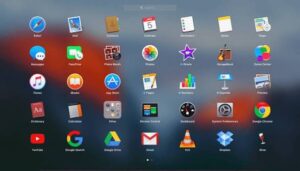
Introduction to the Best PC Apps
The best PC apps aren’t just popular—they are practical. They address real problems, like managing tasks efficiently, protecting your data, or editing content like a professional. Choosing the right applications ensures your computer performs optimally and supports your goals. Whether you want to streamline work, secure sensitive information, or enjoy multimedia seamlessly, there is an app designed for you.
Why Choosing the Right PC Apps Matters
Imagine spending hours on a project only for your software to crash, or trying to organize tasks across multiple platforms. Inefficient apps can slow your workflow, waste your time, and even put your data at risk. The right PC apps simplify tasks, enhance productivity, and safeguard your information. For instance, productivity apps like Notion or Microsoft Office help manage complex tasks in one place, eliminating confusion and boosting efficiency.
Free vs Paid PC Applications
One of the first decisions when building your PC toolkit is whether to use free or paid apps. Free apps, like VLC Media Player and LibreOffice, offer excellent functionality without costing a dime. Paid apps, on the other hand, provide premium features, advanced support, and regular updates. For example, Adobe Photoshop offers professional-grade editing tools, while GIMP serves as a free alternative with slightly fewer features. The best approach is a balanced mix: free apps for basic tasks and paid apps for specialized needs.
Top Productivity Apps for PC
Productivity apps are essential for anyone who spends significant time on a computer. These apps help organize work, manage tasks, and collaborate efficiently.
Microsoft Office Suite
Microsoft Office remains the go-to productivity suite for most PC users. With Word for documents, Excel for spreadsheets, and PowerPoint for presentations, it covers all essential tasks. Real-life example: students often rely on Word to draft essays, while professionals use Excel to analyze data. Office also integrates with cloud storage, allowing seamless collaboration across devices.
Notion
Notion is a versatile app combining note-taking, task management, and project organization. Unlike traditional apps, Notion lets you create custom workflows. For instance, a marketing team can track campaigns, assign tasks, and store research—all in one dashboard. Beginners may spend some time learning its interface, but the long-term benefits are significant.
Todoist
Todoist is a task management app designed to keep your to-do lists organized. It’s particularly helpful for professionals juggling multiple projects. Features include priority levels, project boards, and recurring tasks. Using Todoist daily ensures deadlines are met, and tasks don’t slip through the cracks.
Evernote
Evernote is ideal for collecting, organizing, and accessing notes across devices. Students, writers, and researchers often use Evernote to clip web articles, store images, and organize research notes. Its search function makes retrieving information fast, saving time and reducing frustration.
Best Security and Utility Apps
Security is a critical component of any PC setup. Without protection, even the best apps can’t prevent data loss or cyber threats. Utility apps also ensure your system runs efficiently.
Antivirus Software
Reliable antivirus programs like Bitdefender, Norton, and Kaspersky provide comprehensive protection against malware, ransomware, and phishing attacks. Installing antivirus software is a simple yet essential step to safeguard personal data and prevent costly breaches.
VPN Applications
VPNs (Virtual Private Networks) encrypt your internet traffic, ensuring privacy and security. Popular options include NordVPN and ExpressVPN. Real-life scenario: when using public Wi-Fi, a VPN prevents hackers from intercepting sensitive information like passwords or bank details.
Disk Cleanup and Optimization Tools
Over time, PCs accumulate temporary files and fragmented data that slow performance. Tools like CCleaner or native Windows utilities clean up unnecessary files and optimize disk space. Regular maintenance improves speed and prolongs system life.
Essential Creative and Entertainment Apps
Beyond productivity, the best PC apps enhance creativity and provide entertainment. Whether editing videos, designing graphics, or playing games, the right software elevates your experience.
Video Editing Apps
DaVinci Resolve and Adobe Premiere Pro are top choices for video creators. They offer advanced features for editing, color grading, and visual effects. Beginners can start with DaVinci Resolve’s free version, which includes many professional tools without the cost.
Image Editing Software
Adobe Photoshop remains the gold standard for image editing. For those seeking free alternatives, GIMP provides robust tools suitable for most editing needs. Real-life example: photographers often use Photoshop to enhance images, while social media managers rely on GIMP for budget-friendly content creation.
Gaming Utilities and Launchers
Gamers benefit from apps like Steam and Epic Games Launcher, which organize game libraries, manage updates, and provide community features. Tools like MSI Afterburner help monitor system performance during gaming sessions.
Free PC Apps Worth Downloading
Many free apps deliver high value without requiring payment. They cover essential needs like media playback, document editing, and web browsing.
VLC Media Player
VLC plays almost any video or audio file without additional codecs. It’s lightweight, fast, and reliable. Real-life scenario: students and professionals use VLC to play lectures, tutorials, or presentations seamlessly.
LibreOffice
LibreOffice is a free alternative to Microsoft Office. It includes word processing, spreadsheets, presentations, and more. While slightly less polished than Office, it’s fully capable for most professional and academic tasks.
Browser Recommendations
Modern browsers like Google Chrome and Mozilla Firefox are essential for fast, secure browsing. Extensions can boost productivity, block ads, and improve online security.
Tips for Installing and Managing PC Apps Efficiently
Installing the right apps is only half the battle; managing them effectively is equally important. A cluttered PC slows down performance and increases the risk of errors or conflicts between software.
Keeping Software Updated
Always update your apps to the latest versions. Developers release updates to fix bugs, patch security vulnerabilities, and add new features. For example, updating your antivirus ensures protection against the newest malware threats. Enable automatic updates where possible to save time and reduce the risk of forgetting.
Managing System Resources
Some apps consume significant CPU or memory, which can slow your PC. Tools like Task Manager (Windows) or Activity Monitor (Mac) help track resource usage. Close unnecessary apps running in the background to free up memory and boost performance. This is especially useful when multitasking or gaming.
Avoiding Malware
Download apps only from official websites or verified app stores. Avoid suspicious links, cracked software, or pirated apps, as they often contain malware. Real-life example: a user downloaded a free PDF converter from an untrusted site, which installed a hidden keylogger, compromising personal data. Staying vigilant keeps your PC safe and your data secure.
Comparison Table: Free vs Paid Apps
| Category | Free App | Paid App | Best Use |
|---|---|---|---|
| Office/Productivity | LibreOffice | Microsoft Office | Document editing, spreadsheets, presentations |
| Video Editing | DaVinci Resolve | Adobe Premiere Pro | Professional video production |
| Image Editing | GIMP | Adobe Photoshop | Graphic design and photo editing |
| Media Playback | VLC Media Player | N/A | Video and audio playback |
| Security | Windows Defender | Bitdefender | Protection against malware and viruses |
Featured FAQs about PC Apps
1. What are the must-have PC apps for beginners?
For beginners, start with essential apps like Microsoft Office or LibreOffice for productivity, VLC Media Player for media playback, and an antivirus like Windows Defender or Bitdefender for security. These cover most basic needs without overwhelming your system.
2. Are free PC apps as good as paid ones?
Many free apps are excellent and sufficient for everyday tasks. However, paid apps often offer advanced features, better support, and more frequent updates. For example, GIMP is great for photo editing, but Photoshop provides more professional tools.
3. How can I prevent my PC from slowing down?
Keep apps updated, uninstall unused software, and monitor resource usage. Regularly clean temporary files and optimize your disk. Avoid running too many apps simultaneously, especially resource-intensive programs like video editors or games.
4. Can I use mobile apps on my PC?
Some mobile apps offer PC versions or web alternatives. For instance, Notion and Evernote are available on both platforms, allowing seamless workflow across devices. Emulators like BlueStacks can run Android apps on Windows, but native PC apps usually perform better.
5. How do I choose between Windows and Mac apps?
Consider your operating system first. Some apps are exclusive to Windows or macOS, while others are cross-platform. For example, Final Cut Pro is Mac-only, whereas Adobe Premiere Pro works on both. Always check compatibility before installing.
6. Are there apps that boost PC performance?
Yes, optimization tools like CCleaner, AVG TuneUp, and native utilities in Windows or macOS help improve performance by cleaning temporary files, managing startup apps, and monitoring resource usage.
7. What’s the best way to organize PC apps?
Create folders for different categories like productivity, entertainment, and security. Use the Start menu, Dock, or desktop shortcuts to group apps logically. This reduces clutter and makes accessing apps faster.
For those interested in comparing PC and mobile software, check out best mobile apps. Windows users can find tips for system efficiency in Windows Mobile Hacks, while Mac users can optimize their workflow using MacOS Tips and Tricks. Additionally, productivity enthusiasts can explore performance-enhancing apps for ideas on boosting efficiency across devices.
Final Thoughts
Choosing the best PC apps doesn’t have to be complicated. Focus on apps that solve your problems, enhance productivity, protect your system, and provide enjoyment. Start with essential productivity tools, add security apps, and then select entertainment and creative software that matches your interests. Combining free and paid options ensures you get value without overspending. By organizing, updating, and managing your apps efficiently, your PC becomes a powerful tool for work, play, and creativity.
Remember, the best PC apps are the ones that make your digital life easier, faster, and more enjoyable. Regularly evaluate your toolkit, remove apps you no longer use, and keep exploring new software to stay productive and secure.