Tapo camera setup without QR code is possible on most modern Tapo cameras, including popular models such as Tapo C100, Tapo C110, Tapo C120, Tapo C200, and Tapo C210. In many cases, a manual setup method works when the QR code is damaged, missing, blurry, or simply refuses to scan.
After setting up several Tapo cameras in different homes, I found that Wi-Fi pairing and device discovery are usually more important than the QR code itself. Fortunately, the Tapo app provides alternative ways to connect a Tapo camera and complete installation.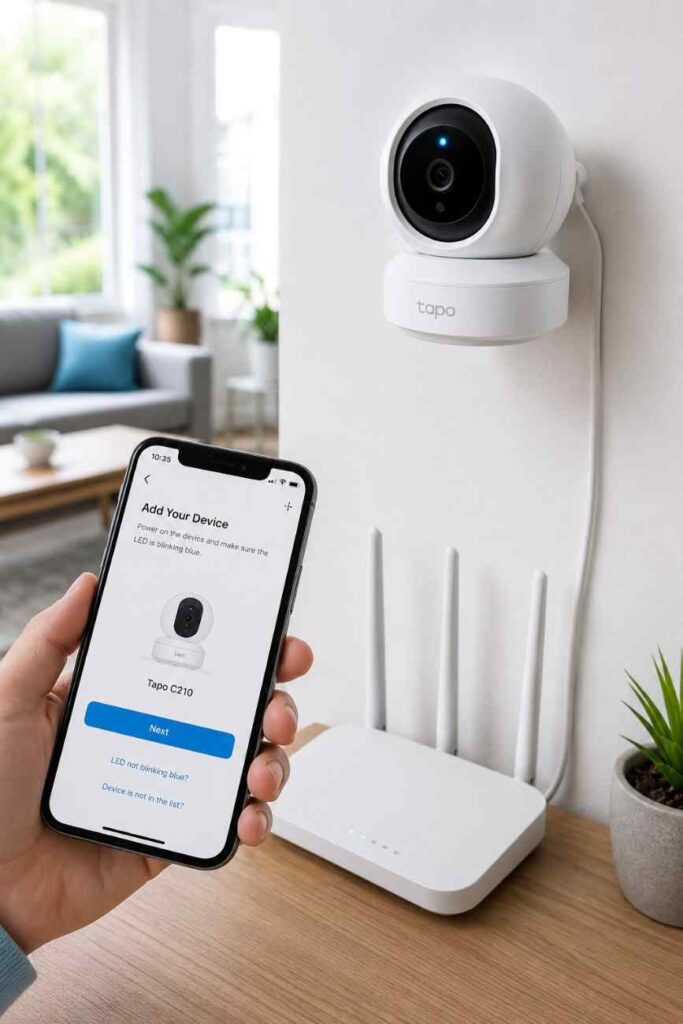
Can You Set Up a Tapo Camera Without a QR Code?
Yes, a Tapo camera setup without QR code is supported on many Tapo camera models through manual device selection and direct Wi-Fi pairing. The QR code mainly helps the Tapo app identify the camera faster, but the actual connection process relies on the camera’s setup network and your Wi-Fi credentials.
During installation, the Tapo app can often detect a nearby Tapo camera after you select the correct model manually. Consequently, a missing QR code does not automatically prevent setup.
When Manual Setup Works
Manual setup works when a Tapo camera enters pairing mode and broadcasts its temporary Wi-Fi network. Most Tapo cameras create a setup network that allows the Tapo app to discover the device without scanning any code.
For example, a Tapo C210 may display a blinking LED after a reset. Once the Tapo camera enters setup mode, the Tapo app can usually continue installation using model selection instead of QR scanning.
Additionally, manual setup is helpful when:
- QR code stickers are damaged
- Camera packaging is missing
- Phone cameras cannot focus properly
- Ceiling-mounted cameras are difficult to reach
- Used Tapo cameras no longer have readable labels
Tapo Models That Support Manual Setup
Most indoor Tapo cameras support manual setup methods. However, setup screens may vary slightly depending on firmware version and Tapo app updates.
| Model | Manual Setup | 2.4GHz Wi-Fi | App Support | Recommended |
|---|---|---|---|---|
| Tapo C100 | Yes | Required | Tapo App | Yes |
| Tapo C110 | Yes | Required | Tapo App | Yes |
| Tapo C120 | Yes | Required | Tapo App | Yes |
| Tapo C200 | Yes | Required | Tapo App | Yes |
| Tapo C210 | Yes | Required | Tapo App | Yes |
| TC70 | Yes | Required | Tapo App | Yes |
Furthermore, every Tapo camera listed above performs best on a dedicated 2.4GHz Wi-Fi network. Many setup failures occur because a router is configured only for 5GHz connections.
Does Tapo Camera Work Without WiFi?
Why Tapo Camera QR Codes Stop Working
A Tapo camera QR code can fail for several reasons, including physical damage, poor lighting, software bugs, and camera focus problems. Understanding the root cause often saves time before attempting a complete reset.
Damaged or Missing QR Code
A damaged QR code is one of the most common reasons for a failed Tapo camera installation. Labels placed on the bottom of a Tapo camera can fade over time, especially in dusty, humid, or outdoor environments.
After inspecting older Tapo C200 units, I noticed that small scratches across the QR pattern frequently prevented the Tapo app from recognizing the code. In those situations, manual setup usually solved the problem.
Poor Camera Focus
Phone camera focus issues can prevent the Tapo app from reading a QR code accurately. Budget smartphones sometimes struggle to focus on small printed codes, particularly when the label is attached to a curved surface.
Moving closer is not always helpful. Instead, increasing distance slightly and allowing the phone camera to focus naturally often improves QR code recognition.
Low Lighting Conditions
Low lighting frequently causes QR code scanning failures during Tapo camera setup. Dark rooms reduce contrast between black and white sections of the code, making recognition difficult.
For better results, position the Tapo camera near a bright window or shine a flashlight indirectly across the QR code surface. As a result, the Tapo app can often scan the label successfully.
App Recognition Errors
Tapo app recognition errors sometimes occur even when the QR code is perfectly visible. Software bugs, outdated app versions, and interrupted permissions can prevent the Tapo app from processing scanned information correctly.
Updating the Tapo app from the official TP-Link app store listing resolves many recognition issues. Additionally, granting camera permissions again can restore scanning functionality.
| Problem | Likely Cause | Recommended Fix |
|---|---|---|
| QR code not scanning | Damaged sticker | Use manual setup |
| Blurry QR code | Camera focus issue | Adjust distance |
| Code invisible | Low lighting | Increase brightness |
| Scan fails repeatedly | App bug | Update Tapo app |
| QR sticker missing | Label removed | Use device information |
How to Set Up a Tapo Camera Manually
A manual Tapo camera setup without QR code requires resetting the camera, joining the temporary setup network, and completing Wi-Fi configuration inside the Tapo app. The process typically takes less than 10 minutes.
Reset the Camera
Resetting a Tapo camera clears previous pairing information and returns the device to setup mode. Most Tapo cameras include a small reset button located near the SD card slot or on the camera body.
Hold the reset button for approximately 5 to 10 seconds until the status LED begins blinking. Once the indicator flashes, the Tapo camera is ready for a fresh installation.
Connect to the Camera Wi-Fi Network
Every Tapo camera creates a temporary Wi-Fi network during setup mode. This network usually appears with a name similar to Tapo_Cam_XXXX.
Open your phone’s Wi-Fi settings and connect directly to the Tapo camera network. After connecting, return to the Tapo app and continue the installation process.
TP-Link provides additional setup documentation through its official support portal: TP-Link Support.
Add the Device in the Tapo App
The Tapo app allows manual device selection when QR scanning fails. Tap the plus icon, choose Camera, and then select the exact Tapo camera model you are installing.
Choosing the correct model is important because setup instructions differ slightly between devices. Consequently, selecting Tapo C210 instead of Tapo C200 may lead to connection issues.
Complete Network Configuration
Network configuration connects the Tapo camera to your home Wi-Fi network. Enter the correct 2.4GHz Wi-Fi password and allow the camera to complete the pairing process.
During setup, keep the Tapo camera within a reasonable distance of the router. Weak signal strength can interrupt installation and force you to repeat the process.
| Step | Action | Expected Result |
|---|---|---|
| 1 | Reset Tapo camera | LED begins blinking |
| 2 | Open Wi-Fi settings | Camera network appears |
| 3 | Connect to Tapo network | Phone links to camera |
| 4 | Select model in Tapo app | Device detected |
| 5 | Enter Wi-Fi password | Camera joins network |
| 6 | Finish installation | Live video becomes available |
Alternative Ways to Connect When QR Setup Fails
A Tapo camera setup without QR code can still succeed when the QR label is unreadable or completely missing. Several alternative identification methods help the Tapo app recognize a Tapo camera during installation.
Using the Device Serial Number
A Tapo camera serial number can help identify the device when troubleshooting ownership or setup issues. Most Tapo camera models display the serial number on the bottom label, rear sticker, or original packaging.
During a support case, TP-Link may request the Tapo camera serial number to verify the device and provide model-specific instructions. Therefore, taking a photo of the serial number before mounting a Tapo camera can save time later.
Using the MAC Address
A Tapo camera MAC address provides a unique identifier for network discovery. Some routers display connected Tapo camera devices by MAC address even when the Tapo app cannot immediately detect the camera.
Checking the router device list can confirm whether the Tapo camera successfully joined the network. Consequently, a visible MAC address often indicates that the issue is app-related rather than a Wi-Fi problem.
Reinstalling the Tapo App
The Tapo app occasionally develops cached data issues that interfere with camera detection. Removing the Tapo app and performing a clean installation frequently resolves device discovery errors.
After reinstalling the Tapo app, sign in using the same TP-Link account and repeat the pairing process. In many cases, the refreshed installation restores proper communication with the Tapo camera.
Contacting TP-Link Support
TP-Link support is the best option when a Tapo camera remains inaccessible after multiple reset attempts. TP-Link support can verify ownership, confirm firmware compatibility, and provide model-specific recovery steps.
Official TP-Link resources are available through TP-Link Support and TP-Link Community.
| Method | Difficulty | Success Rate | Best Use Case |
|---|---|---|---|
| Manual Setup | Easy | High | Missing QR code |
| Serial Number Verification | Easy | Medium | Ownership issues |
| MAC Address Discovery | Medium | Medium | Network troubleshooting |
| App Reinstallation | Easy | High | App detection errors |
| TP-Link Support | Medium | High | Persistent setup failures |
Tapo App Cannot Find the Camera
The Tapo app cannot find a Tapo camera when network settings, app permissions, or router configurations prevent communication. Most discovery failures originate from Wi-Fi settings rather than hardware defects.
Check 2.4GHz Wi-Fi Settings
A Tapo camera requires a 2.4GHz Wi-Fi network during initial setup. Many modern routers combine 2.4GHz and 5GHz networks under one name, which can confuse certain smart home devices.
Separating the 2.4GHz network temporarily often allows a Tapo camera to connect successfully. After setup, the Tapo camera usually maintains a more stable connection.
Disable Mobile Data Temporarily
Mobile data can interfere with local Tapo camera discovery on some smartphones. When a phone switches between Wi-Fi and cellular data, the Tapo app may lose communication with the camera.
Turning off mobile data during installation keeps the phone connected to the Tapo camera network. As a result, the setup process becomes more reliable.
Update the Tapo App
An outdated Tapo app may not support newer firmware releases. Updating the Tapo app ensures compatibility with current Tapo camera software.
Recent updates also improve camera detection and connection stability. Furthermore, TP-Link regularly fixes known setup issues through app updates.
Restart Router and Camera
Restarting both the router and Tapo camera refreshes network services and removes temporary connection problems. A full restart often resolves stubborn discovery failures.
Disconnect power from the Tapo camera for 30 seconds before reconnecting. Meanwhile, reboot the router and wait until internet connectivity returns.
| Error Message | Likely Cause | Recommended Fix |
|---|---|---|
| Device Not Found | Wi-Fi issue | Check 2.4GHz network |
| Unable To Connect | Wrong password | Verify Wi-Fi credentials |
| Setup Timed Out | Weak signal | Move closer to router |
| Device Offline | Network interruption | Restart router |
| Camera Not Detected | App issue | Update or reinstall app |
Quick Fix Checklist for Setup Failures
A quick troubleshooting checklist helps identify the most common causes of Tapo camera setup failures. Reviewing each item systematically reduces unnecessary resets and repeated installations.
Verify Camera Status LED
A Tapo camera status LED indicates whether the camera is ready for pairing. Most Tapo camera models display a blinking red or alternating red-green indicator during setup mode.
If the status LED remains solid, perform a factory reset before attempting installation again.
Confirm Wi-Fi Compatibility
A Tapo camera works best with WPA2-protected 2.4GHz Wi-Fi networks. Certain enterprise networks, captive portals, and advanced authentication methods can prevent successful pairing.
Checking router settings before installation eliminates many connection issues. Therefore, compatibility verification should be completed before resetting the camera repeatedly.
Check App Permissions
The Tapo app requires camera, location, and local network permissions on many Android and iPhone devices. Missing permissions can stop the Tapo app from discovering nearby cameras.
Reviewing permission settings often restores functionality immediately. Additionally, enabling nearby device permissions improves device detection reliability.
Reset and Retry Setup
A factory reset remains one of the most effective troubleshooting methods for a Tapo camera. Previous Wi-Fi settings, incomplete installations, and corrupted configuration files are removed during the reset process.
After resetting the Tapo camera, repeat the manual setup process from the beginning. Following each step carefully typically restores normal operation.
| Checklist Item | Status |
|---|---|
| Tapo camera reset completed | □ |
| 2.4GHz Wi-Fi verified | □ |
| Tapo app updated | □ |
| Permissions enabled | □ |
| Router restarted | □ |
| Camera LED blinking | □ |
Related Tapo Guides:
Frequently Asked Questions
Can I use a Tapo camera without scanning the QR code?
Yes, a Tapo camera can usually be installed without scanning the QR code. Most Tapo camera models support manual device selection and Wi-Fi pairing through the Tapo app, allowing installation even when the QR code is damaged or missing.
What if my QR code sticker is missing?
A missing QR code sticker does not automatically prevent Tapo camera setup. Manual setup methods, serial number verification, and direct Wi-Fi pairing typically allow the Tapo camera to connect successfully.
Why does the Tapo app keep asking for a QR code?
The Tapo app may repeatedly request a QR code when the camera has not entered pairing mode correctly. Resetting the Tapo camera and selecting the correct model manually often resolves this issue.
Can I set up a used Tapo camera?
Yes, a used Tapo camera can be installed after performing a factory reset. However, some used Tapo cameras may remain linked to a previous TP-Link account and require ownership verification.
Does resetting delete recordings?
A Tapo camera reset removes network settings and device configuration. Local recordings stored on a microSD card are generally preserved unless the storage card is formatted separately.
Which Tapo cameras support manual setup?
Tapo C100, Tapo C110, Tapo C120, Tapo C200, Tapo C210, and TC70 support manual setup through the Tapo app. Most modern Tapo camera models provide alternative setup methods when QR scanning fails.
Bottom Line
Fastest Method for Most Users
The fastest Tapo camera setup without QR code method is resetting the Tapo camera, connecting to the temporary Tapo Wi-Fi network, and selecting the camera model manually in the Tapo app. This approach resolves most QR code-related installation problems in less than 10 minutes.
When to Contact TP-Link Support
TP-Link support becomes necessary when a Tapo camera remains offline after multiple factory resets, app reinstalls, and network checks. Persistent ownership conflicts, firmware corruption, and account binding issues usually require direct assistance from TP-Link.